
What You’ll Learn
- Creating custom roles for team members
- Defining permissions and allowed sites
- Assigning roles to users
- Managing role-based access control
Create your custom role(s)
Define permissions and select allowed add-ons and child sites for the role(s)
Create new users (optional)
Assign the role to dashboard site users
What’s New in 5.2.0
- You can use Team Control abilities to manage roles, members, permissions, and role notes.
- You can grant protected authority and operation permissions only through authorized roles.
- You preview and confirm role changes before they apply. If an operation is interrupted, the extension can recover without leaving a partial role change.
- Existing installations receive an owner automatically, and you cannot grant yourself protected access.
- When you remove a user, the extension verifies the multisite deletion result before changing role membership.
- Repeating a role-note request does not create duplicates, and a complete role update replaces your prior permission set.
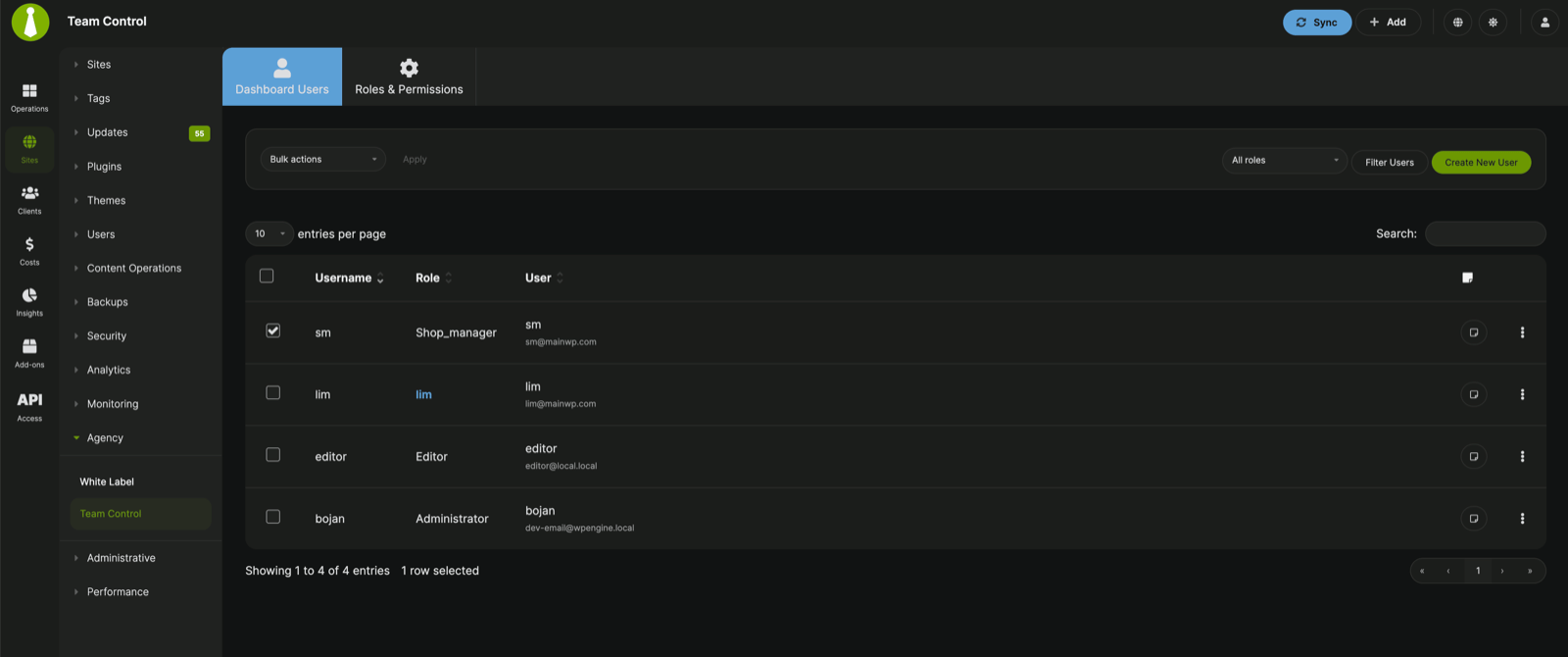
- Dashboard Users - View users immediately, filter by one or more roles, search the users table, and apply bulk actions.
- Roles & Permissions - Create roles, review role descriptions, see how many users have each role, and manage or delete roles.
Create a Custom Role
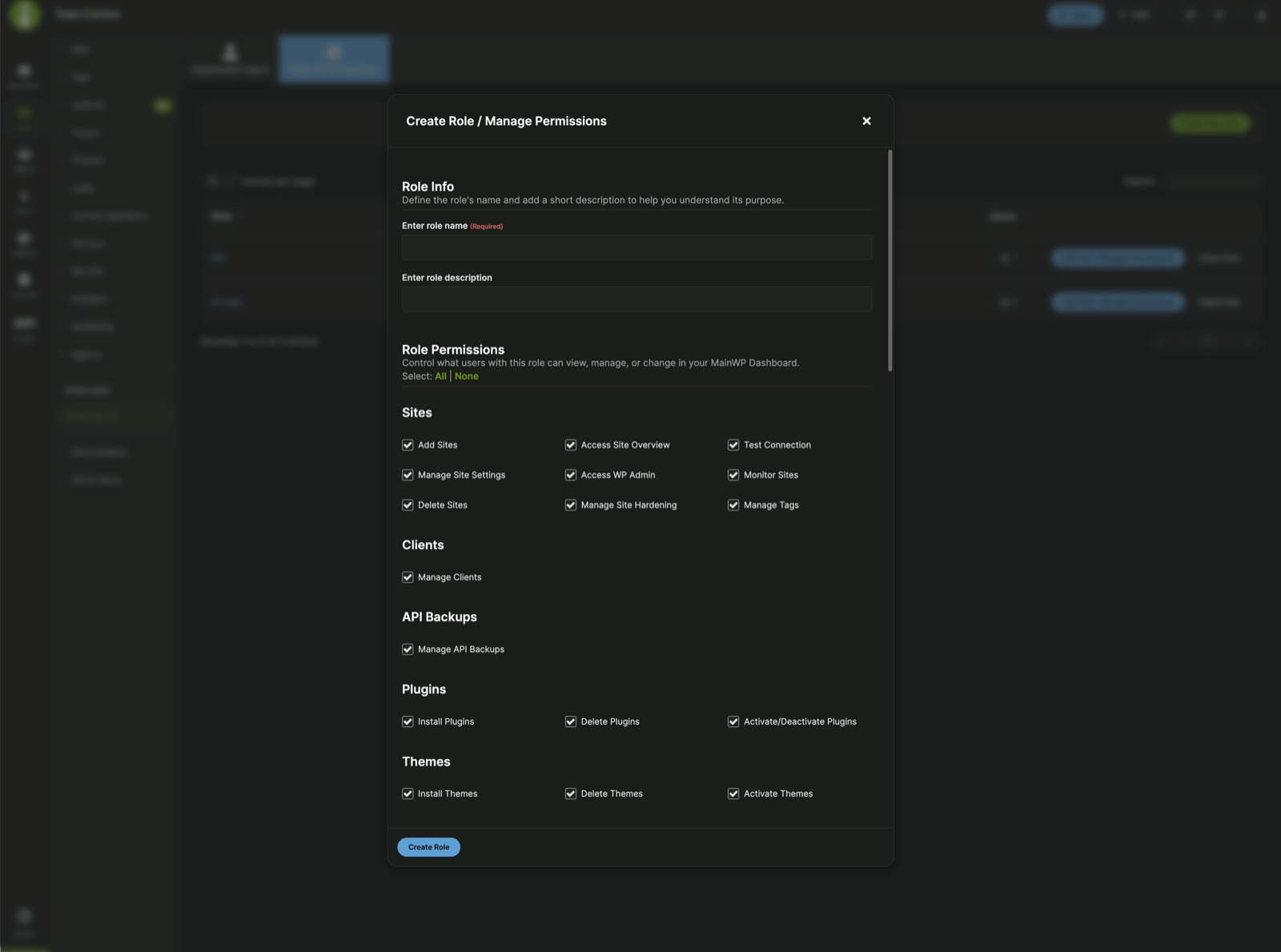
Log in to your MainWP Dashboard
Go to the MainWP > Add-ons > Agency > Team Control page
Go to the Roles & Permissions tab
Click the Create New Role button in the action bar
Enter the role name and description
Configure the role permissions in the same modal
Click the Create Role button
Define Role Permissions
Log in to your MainWP Dashboard
Go to the MainWP > Add-ons > Agency > Team Control page
Go to the Roles & Permissions tab
Locate the previously created role
Click the Edit Role / Manage Permissions button
Set MainWP Dashboard permissions
Set Allowed Add-ons
Set Allowed Child Sites
Click the Update Role button
Assign Role to a User
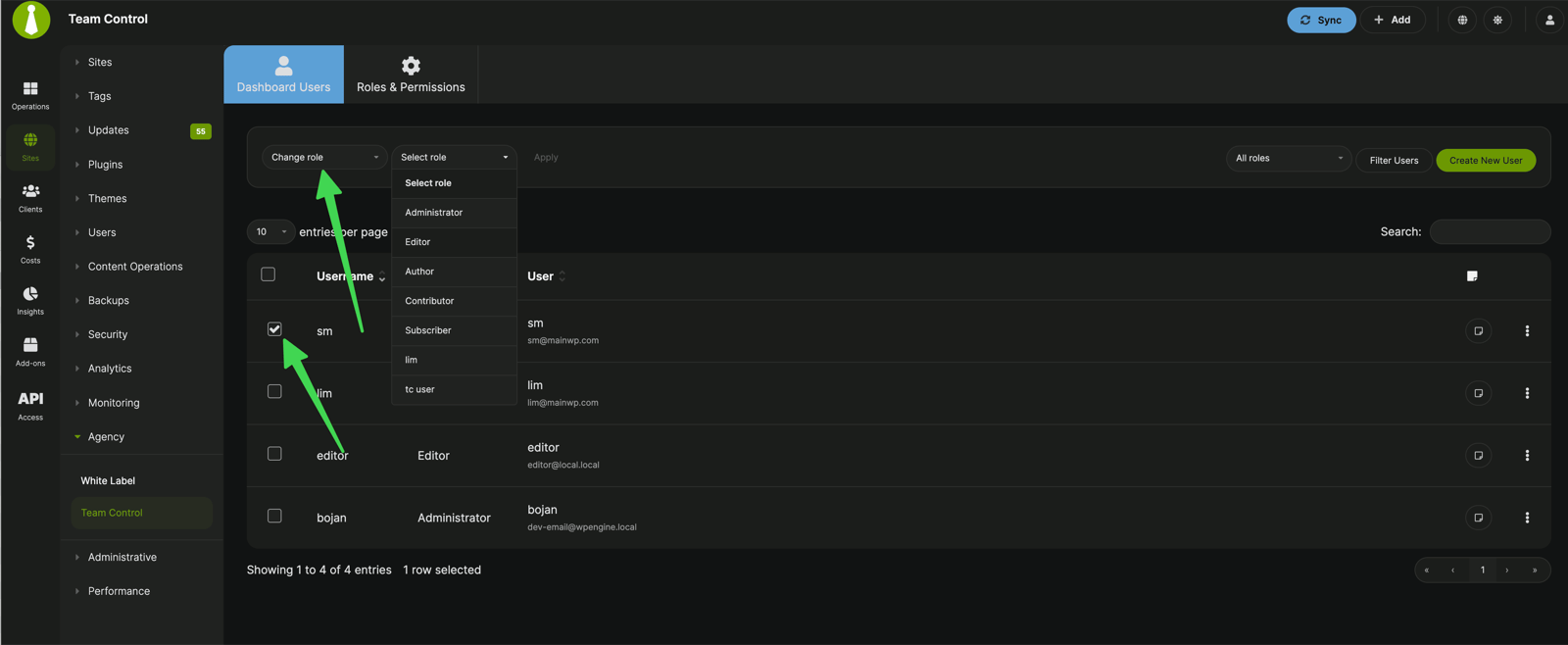
Log in to your MainWP Dashboard
Go to the MainWP > Add-ons > Agency > Team Control page
Go to the Dashboard Users tab
Filter or search for the user
Select the user
Choose Change role from the Bulk actions menu
Edit Custom Role
Log in to your MainWP Dashboard
Go to the MainWP > Add-ons > Agency > Team Control page
Go to the Roles & Permissions tab
Locate the role you want to edit
Click the Edit Role / Manage Permissions button
Set MainWP Dashboard permissions
Set Allowed Add-ons
Set Allowed Child Sites
Click the Update Role button
Delete Custom Role
Log in to your MainWP Dashboard
Go to the MainWP > Add-ons > Agency > Team Control page
Go to the Roles & Permissions tab
Locate the role you want to delete
Click the Delete Role button
Reassign affected users if prompted
Click the Delete Role button in the confirmation dialog
Related Resources
- White Label Extension - Rebrand MainWP for clients
- Agency Add-ons - Browse agency add-ons