> ## Documentation Index
> Fetch the complete documentation index at: https://mainwp-abilities-review-add-update.mintlify.site/llms.txt
> Use this file to discover all available pages before exploring further.

# Manage Users

> Manage WordPress users across your Child Sites from the MainWP Dashboard. Create new users, edit existing users, change roles, import users via CSV, and delete users remotely.

The Manage Users feature lets you control WordPress user accounts across all your child sites from a central location. Create new users on multiple sites at once, edit existing user details, import users via CSV, and remove user accounts without logging into each site individually.

## What You'll Accomplish

* Search and view users across all child sites
* Create new user accounts on one or multiple sites
* Import multiple users via CSV file
* Edit existing user accounts
* Delete single or multiple users

## Prerequisites

* MainWP Dashboard installed and activated
* At least one child site connected to your Dashboard
* Administrator access to your Dashboard site

***

<iframe className="w-full aspect-video rounded-xl" src="https://www.youtube.com/embed/lvzpE04nsTs" title="Manage Users - Video Tutorial" frameBorder="0" allow="accelerometer; autoplay; clipboard-write; encrypted-media; gyroscope; picture-in-picture" allowFullScreen />

***

## View Existing Users

<Steps>
  <Step title="Navigate to Manage Users">
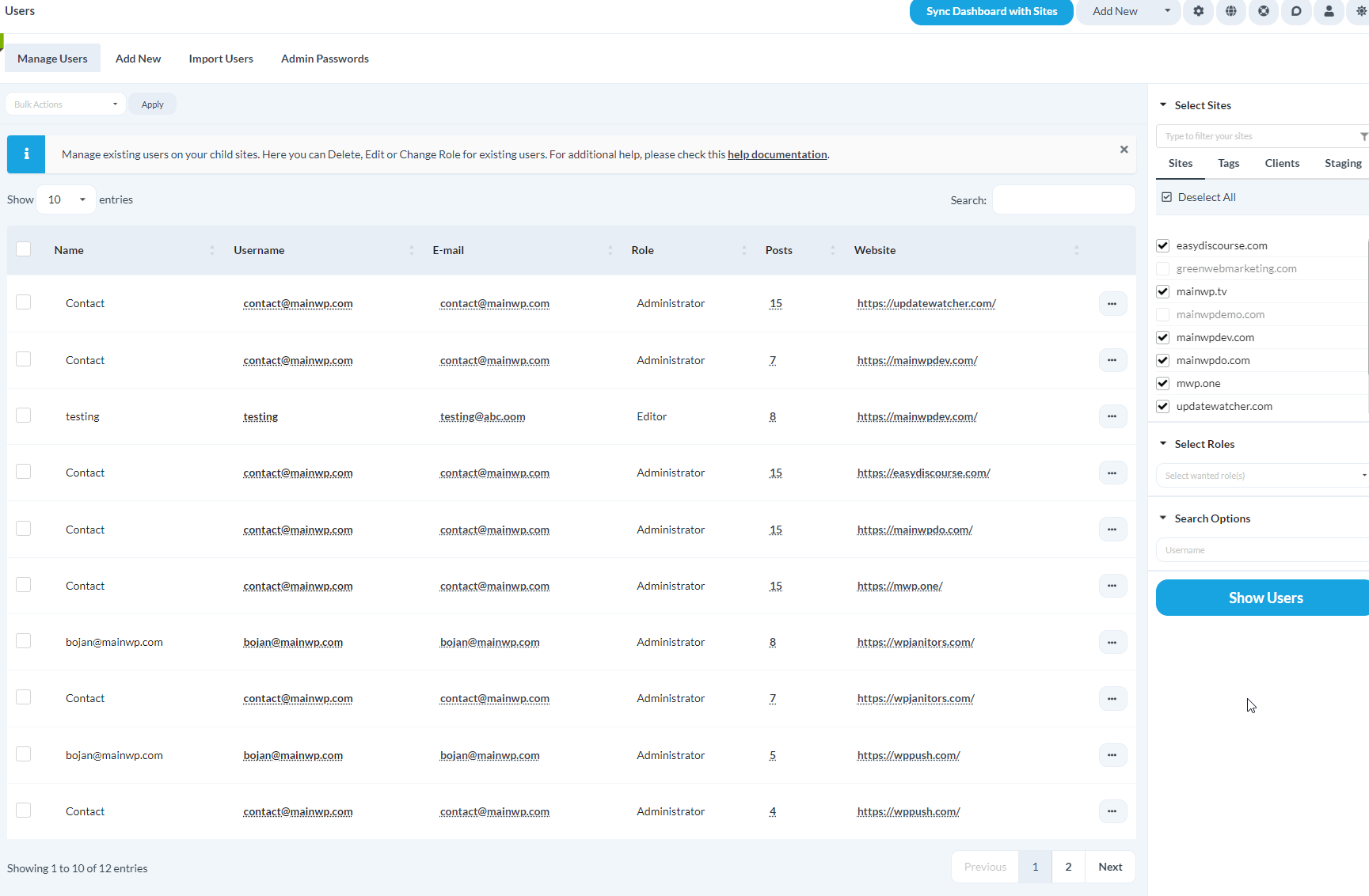
    Go to **MainWP > Users > Manage Users**.

    <img src="https://mintcdn.com/mainwp-abilities-review-add-update/K7vPn5lK_1qI1OyI/images/dashboard/sites-users-27ef2c.png?fit=max&auto=format&n=K7vPn5lK_1qI1OyI&q=85&s=a6c31e6d7f28f54a907e0c4ae3490790" alt="Go to the MainWP > Users > Manage Users page" data-og-width="1729" width="1729" data-og-height="1132" height="1132" data-path="images/dashboard/sites-users-27ef2c.png" data-optimize="true" data-opv="3" srcset="https://mintcdn.com/mainwp-abilities-review-add-update/K7vPn5lK_1qI1OyI/images/dashboard/sites-users-27ef2c.png?w=280&fit=max&auto=format&n=K7vPn5lK_1qI1OyI&q=85&s=22bd966207704c11c17e897436e48e6d 280w, https://mintcdn.com/mainwp-abilities-review-add-update/K7vPn5lK_1qI1OyI/images/dashboard/sites-users-27ef2c.png?w=560&fit=max&auto=format&n=K7vPn5lK_1qI1OyI&q=85&s=c256e334de13d3ce1c025e3be15e827d 560w, https://mintcdn.com/mainwp-abilities-review-add-update/K7vPn5lK_1qI1OyI/images/dashboard/sites-users-27ef2c.png?w=840&fit=max&auto=format&n=K7vPn5lK_1qI1OyI&q=85&s=be18af941cb65318aacc2db34ae155ef 840w, https://mintcdn.com/mainwp-abilities-review-add-update/K7vPn5lK_1qI1OyI/images/dashboard/sites-users-27ef2c.png?w=1100&fit=max&auto=format&n=K7vPn5lK_1qI1OyI&q=85&s=bbc3900592e892954173a443a79699eb 1100w, https://mintcdn.com/mainwp-abilities-review-add-update/K7vPn5lK_1qI1OyI/images/dashboard/sites-users-27ef2c.png?w=1650&fit=max&auto=format&n=K7vPn5lK_1qI1OyI&q=85&s=44b53a0d9433e5673216d05d1ccd304e 1650w, https://mintcdn.com/mainwp-abilities-review-add-update/K7vPn5lK_1qI1OyI/images/dashboard/sites-users-27ef2c.png?w=2500&fit=max&auto=format&n=K7vPn5lK_1qI1OyI&q=85&s=f47692536e673fffce7d4cfdaf8fae75 2500w" />
  </Step>

  <Step title="Set search preferences">
    In the Search section, configure your filter criteria (role, username, email, etc.).
  </Step>

  <Step title="Select child sites">
    [Select the child sites](/getting-started/mainwp-user-interface) you want to search.
  </Step>

  <Step title="Execute search">
    Click **Show Users**.

    A list of matching users appears at the bottom of the page.
  </Step>
</Steps>

***

## Create a New User

Create a WordPress user on one or multiple child sites simultaneously.

<Steps>
  <Step title="Navigate to Add New">
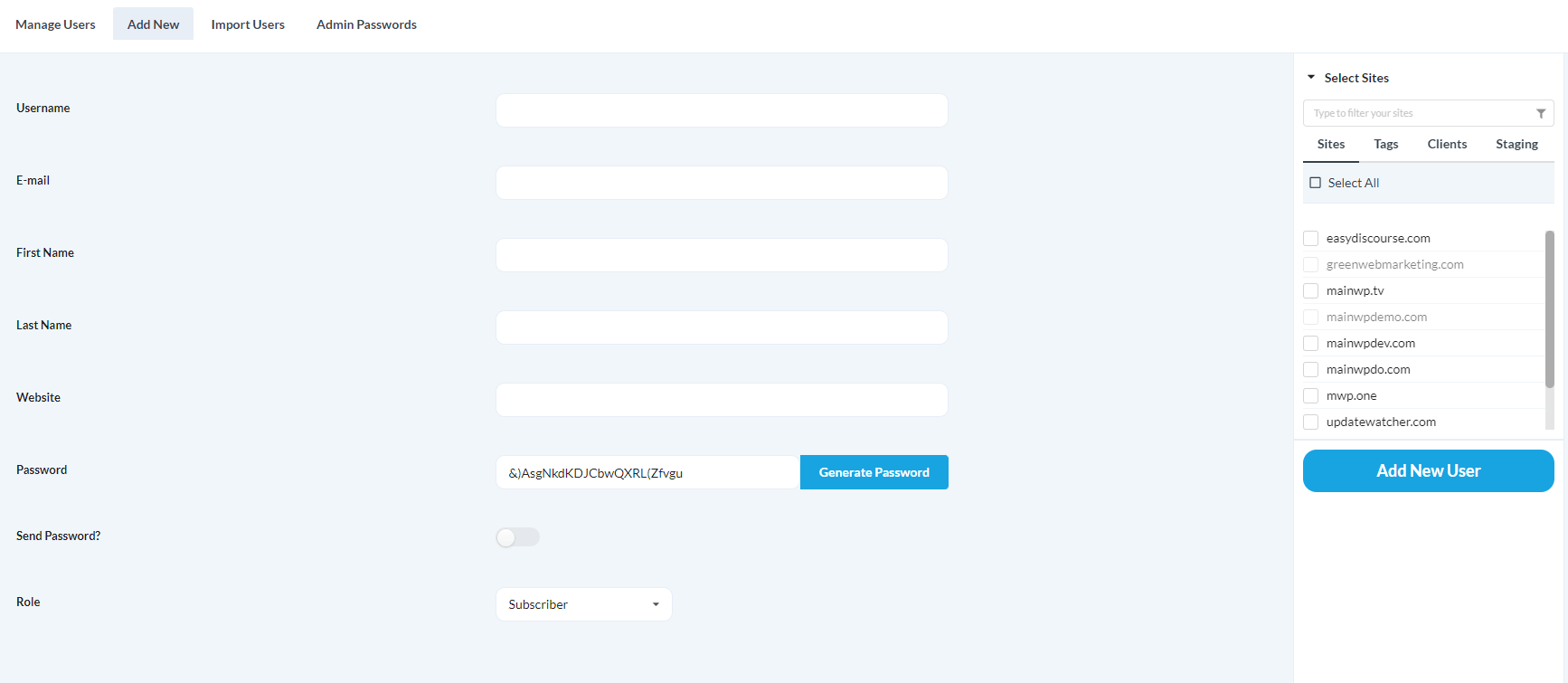
    Go to **MainWP > Users > Add New**.

    <img src="https://mintcdn.com/mainwp-abilities-review-add-update/K7vPn5lK_1qI1OyI/images/dashboard/sites-users-a2d483.png?fit=max&auto=format&n=K7vPn5lK_1qI1OyI&q=85&s=92bb2ed939196ce9851b6e729485c10b" alt="Go to the MainWP > Users > Add New page" data-og-width="1734" width="1734" data-og-height="755" height="755" data-path="images/dashboard/sites-users-a2d483.png" data-optimize="true" data-opv="3" srcset="https://mintcdn.com/mainwp-abilities-review-add-update/K7vPn5lK_1qI1OyI/images/dashboard/sites-users-a2d483.png?w=280&fit=max&auto=format&n=K7vPn5lK_1qI1OyI&q=85&s=114db712112a16e112e91553dcf3daa7 280w, https://mintcdn.com/mainwp-abilities-review-add-update/K7vPn5lK_1qI1OyI/images/dashboard/sites-users-a2d483.png?w=560&fit=max&auto=format&n=K7vPn5lK_1qI1OyI&q=85&s=1c31a947bbdf154962500f7abd10332f 560w, https://mintcdn.com/mainwp-abilities-review-add-update/K7vPn5lK_1qI1OyI/images/dashboard/sites-users-a2d483.png?w=840&fit=max&auto=format&n=K7vPn5lK_1qI1OyI&q=85&s=ac9f811e8c913689dd50220600f3bad6 840w, https://mintcdn.com/mainwp-abilities-review-add-update/K7vPn5lK_1qI1OyI/images/dashboard/sites-users-a2d483.png?w=1100&fit=max&auto=format&n=K7vPn5lK_1qI1OyI&q=85&s=51c96369d54d1475aad6731e26661711 1100w, https://mintcdn.com/mainwp-abilities-review-add-update/K7vPn5lK_1qI1OyI/images/dashboard/sites-users-a2d483.png?w=1650&fit=max&auto=format&n=K7vPn5lK_1qI1OyI&q=85&s=c1e79ddddf35c51e5169550f8afe8e09 1650w, https://mintcdn.com/mainwp-abilities-review-add-update/K7vPn5lK_1qI1OyI/images/dashboard/sites-users-a2d483.png?w=2500&fit=max&auto=format&n=K7vPn5lK_1qI1OyI&q=85&s=1d5cf78f829e8fdb405638957e9c6013 2500w" />
  </Step>

  <Step title="Enter user details">
    Complete the user information:

    | Field         | Description                                        |
    | ------------- | -------------------------------------------------- |
    | Username      | Login name for the user                            |
    | Email Address | User's email for notifications and password resets |
    | First Name    | User's first name (optional)                       |
    | Last Name     | User's last name (optional)                        |
    | Website URL   | User's website (optional)                          |
    | Password      | Enter custom password or use auto-generated one    |
    | Send Password | Check to email the password to the user            |
    | Role          | Select the user's WordPress role                   |
  </Step>

  <Step title="Select sites">
    [Select the child sites](/getting-started/mainwp-user-interface) where you want to create this user.
  </Step>

  <Step title="Create user">
    Click **Add New User**.

    MainWP creates the user account on all selected sites.
  </Step>
</Steps>

***

## Import Users via CSV

Import multiple users at once using a CSV file.

<Steps>
  <Step title="Navigate to Import Users">
    Go to **MainWP > Users > Import Users**.
  </Step>

  <Step title="Download sample">
    Click **Download Sample CSV file** to get the template.
  </Step>

  <Step title="Edit CSV file">
    Open the downloaded file in a text editor. Replace the demo values (lines 2-6) with your user data.

    <img src="https://mintcdn.com/mainwp-abilities-review-add-update/K7vPn5lK_1qI1OyI/images/dashboard/sites-users-8236fd.jpg?fit=max&auto=format&n=K7vPn5lK_1qI1OyI&q=85&s=cf8b29dc309a660ead64fa6d0c523dd3" alt="Import Users - Sample CSV" width="1350" height="99" data-path="images/dashboard/sites-users-8236fd.jpg" />
  </Step>

  <Step title="Format entries">
    Enter values in this order, separated by commas:

    | Position | Field         | Notes                               |
    | -------- | ------------- | ----------------------------------- |
    | 1        | Username      | Required                            |
    | 2        | Email Address | Required                            |
    | 3        | First Name    | Optional                            |
    | 4        | Last Name     | Optional                            |
    | 5        | Website URL   | Optional                            |
    | 6        | Send Password | 0 = don't email, 1 = email password |
    | 7+       | Sites/Tags    | Child site URLs or tag names        |
  </Step>

  <Step title="Upload and import">
    Upload the CSV file to your Dashboard. Check **CSV file contains a header** if you kept line 1 from the sample. Click **Import Users**.
  </Step>
</Steps>

<Warning>
  MainWP requires CSV format. TXT and other text formats will not work.
</Warning>

***

## Edit Existing Users

<Steps>
  <Step title="Search for user">
    Go to **MainWP > Users > Manage Users** and search for the user.
  </Step>

  <Step title="Open edit form">
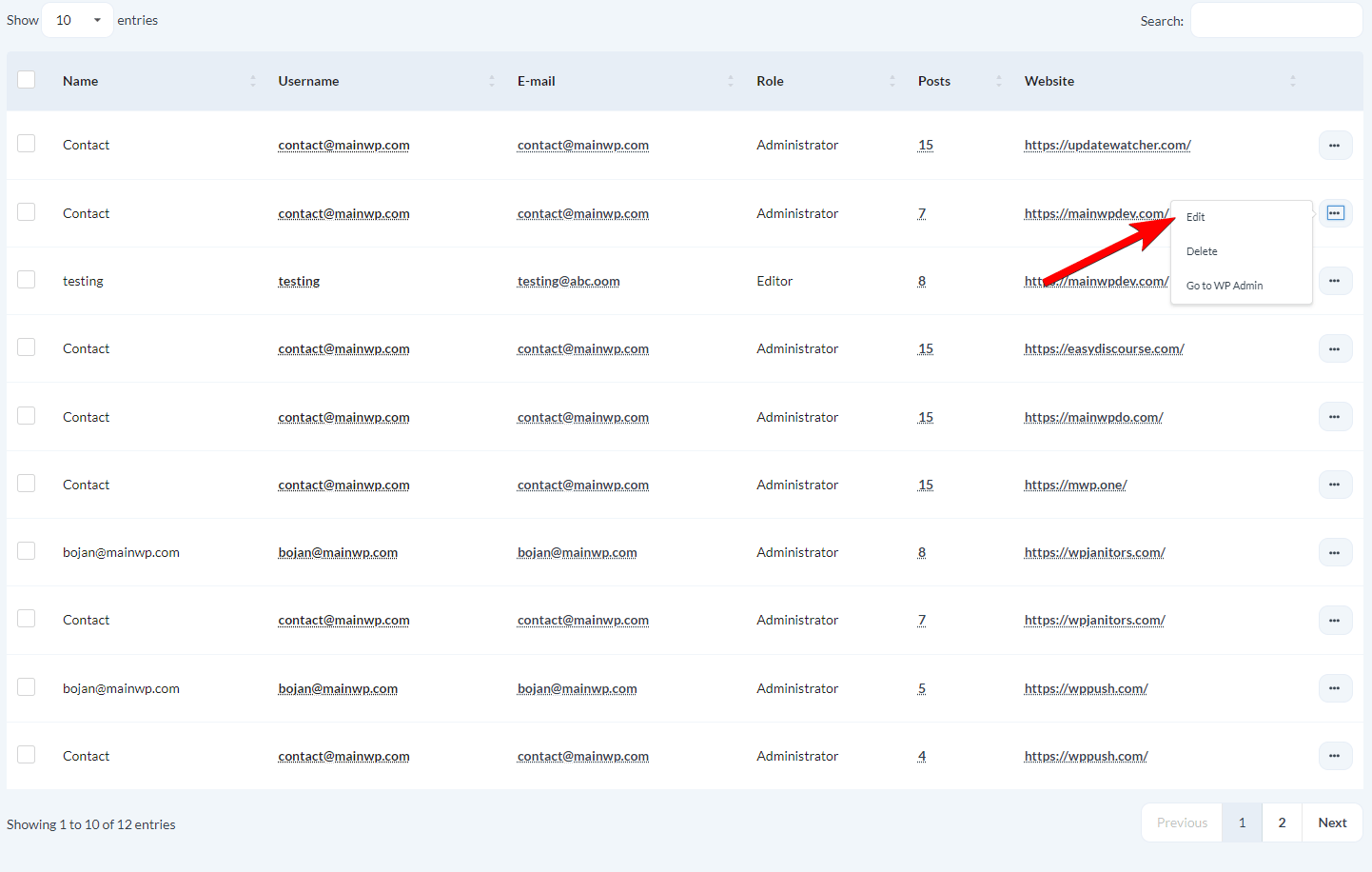
    In the search results, locate the user and click **Edit** in the Actions column.

    <img src="https://mintcdn.com/mainwp-abilities-review-add-update/K7vPn5lK_1qI1OyI/images/dashboard/sites-users-a4612a.png?fit=max&auto=format&n=K7vPn5lK_1qI1OyI&q=85&s=174909f6a938d7b9690ef2e082d2f70f" alt="User search results table showing matching users" width="1442" height="916" data-path="images/dashboard/sites-users-a4612a.png" />
  </Step>

  <Step title="Update details">
    Modify the user information and save changes.
  </Step>
</Steps>

***

<div id="bulk-update-admin-passwords" />

To change the password for the connected administrator account on selected Child Sites, go to [Admin Passwords](/sites/users/admin-passwords).

***

## Delete Users

### Delete a Single User

<Steps>
  <Step title="Search for user">
    Go to **MainWP > Users > Manage Users** and search for the user.
  </Step>

  <Step title="Delete">
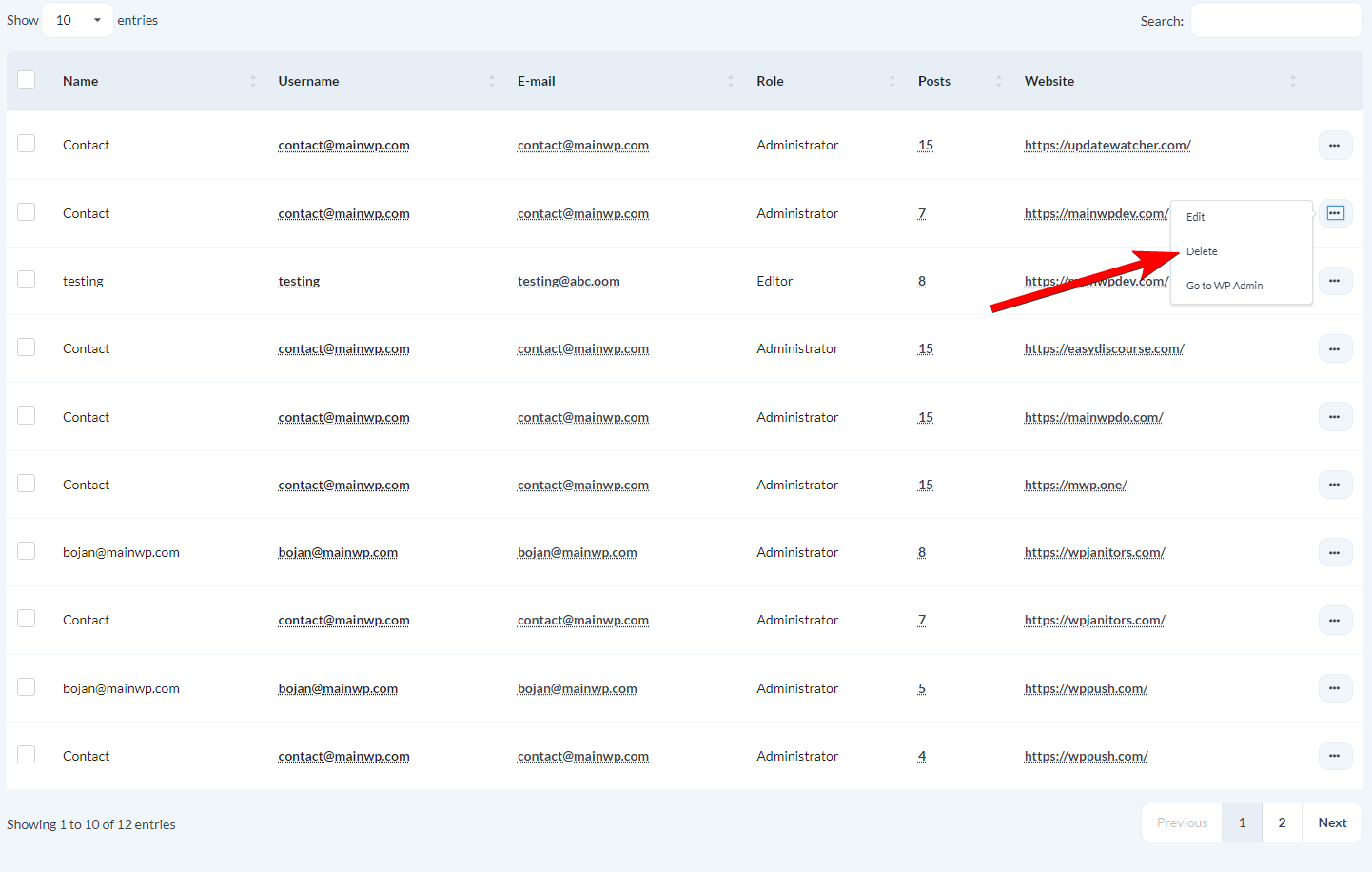
    In the search results, locate the user and click **Delete** in the Actions column.

    <img src="https://mintcdn.com/mainwp-abilities-review-add-update/K7vPn5lK_1qI1OyI/images/dashboard/sites-users-5b800a.png?fit=max&auto=format&n=K7vPn5lK_1qI1OyI&q=85&s=12bf4d447ebddba293c235fa0c754e84" alt="User search results with users selected for deletion" width="1442" height="916" data-path="images/dashboard/sites-users-5b800a.png" />
  </Step>
</Steps>

### Bulk Delete Users

<Steps>
  <Step title="Search for users">
    Go to **MainWP > Users > Manage Users** and search for the users you want to delete.
  </Step>

  <Step title="Select users">
    Check the checkbox next to each user you want to delete.
  </Step>

  <Step title="Apply bulk action">
    Select **Delete** from the **Bulk Actions** dropdown and click **Apply**.
  </Step>
</Steps>

***

## Important Limitations

### Cannot Delete Connection User

MainWP prevents deleting the administrator account used to establish the connection with a child site. To delete this user:

1. Go to **MainWP > Sites > Manage Sites**
2. Edit the child site settings
3. Change the connected administrator to a different user
4. Delete the original user

### Content Attribution

When you delete a user who authored posts or pages, their content is automatically attributed to the connection administrator. To change authorship to a different user, bulk-edit the content directly in the child site's WP Admin.

***

## Self-Check Checklist

* [ ] You can search and view users across child sites
* [ ] New users are created successfully on selected sites
* [ ] CSV imports complete without errors
* [ ] User edits save correctly
* [ ] User deletions complete as expected

***

## Related Resources

* [Manage Sites](/sites/management/manage-child-sites) - Connect and manage child sites
* [Admin Passwords](/sites/users/admin-passwords) - Change the connected administrator account password on selected Child Sites
* [MainWP User Interface](/getting-started/mainwp-user-interface) - Learn site selection controls